
Wondering how to subscribe to our new YouTube channel? View the step-by-step guide below on how to subscribe, how to turn on notifications so you never miss a new video, access the full video description so you can view links to recipes and podcasts, and sign up for our new email list to receive weekly round ups of what’s new and trending on our YouTube.
For Desktop or Laptop Computer Users
Open YouTube in your computer browser.

Visit youtube.com on your computer browser.
Sign into your Google account.
If you have not previously signed into your Google account on YouTube, you will need to do that to subscribe to the channel. If you do not have a Google account, you can create one for no cost. Signing into your Google account will allow you to subscribe to YouTube channels, like videos, leave comments, etc.

 Click on the sign in button in the upper right-hand corner. Then follow the instructions to sign into your Google account.
Search for Bake from Scratch in the search bar.
 Click into the search bar in the top middle of the YouTube page and search “Bake from Scratch”.
Click on the Bake from Scratch profile.
 At the top of the results page, you should see the Bake from Scratch profile before any video results. The profile picture is a blue logo for Bake from Scratch. Clicking on this will take you to Bake from Scratch’s official YouTube channel.
Click the Subscribe button.


Once you click on the button, the button text should change from “Subscribe” to “Subscribed.” You are now subscribed to the channel, meaning you are following the channel.
Turn on notifications.
 Click on the down arrow on the Subscribe button. You will see multiple options here. The top three options listed with bell icons next them are your notification options. Decide which kind of notifications you would prefer to receive for when new content is posted to the channel (All, Personalized, or None) and click on the appropriate option.
View the video description.
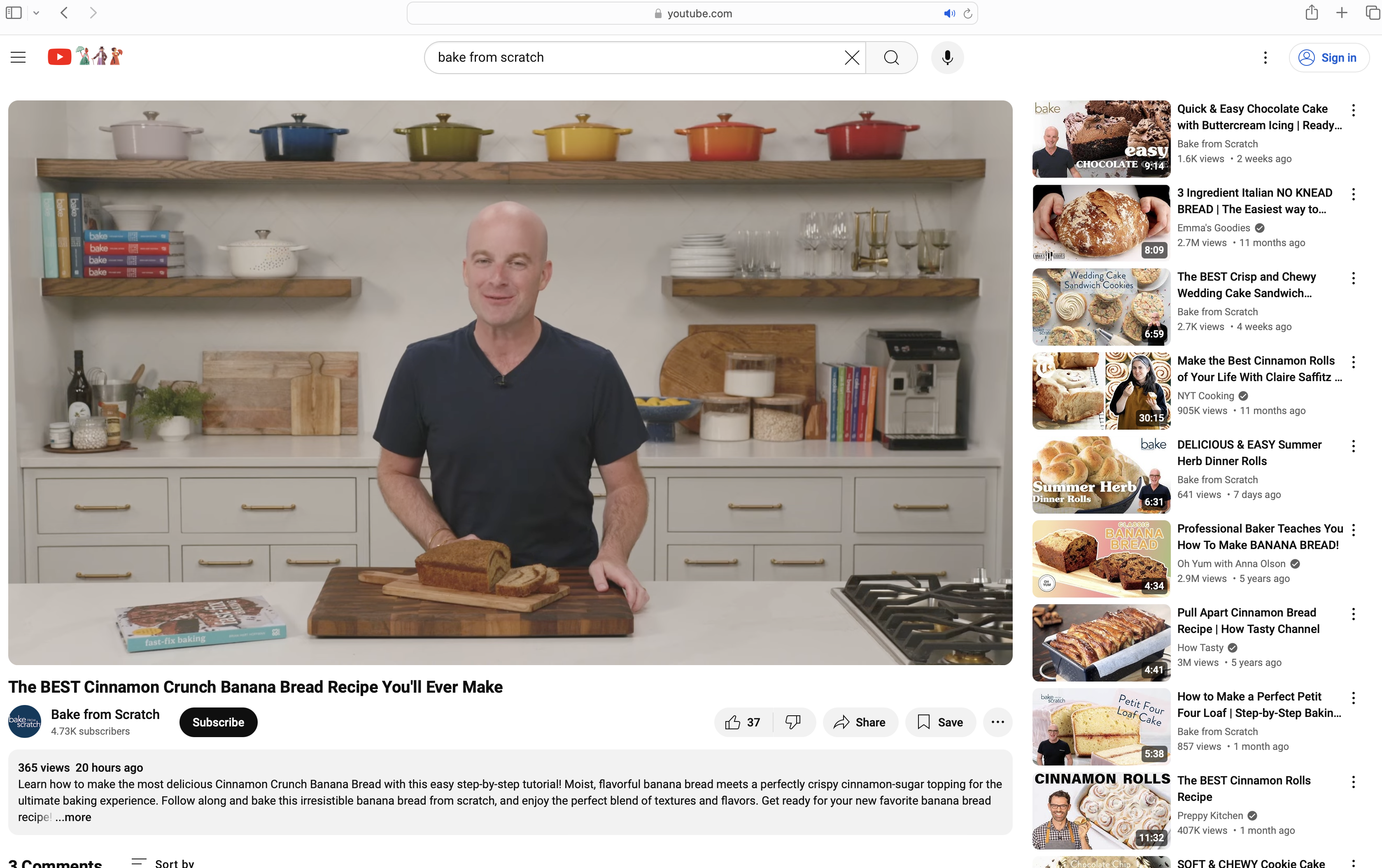
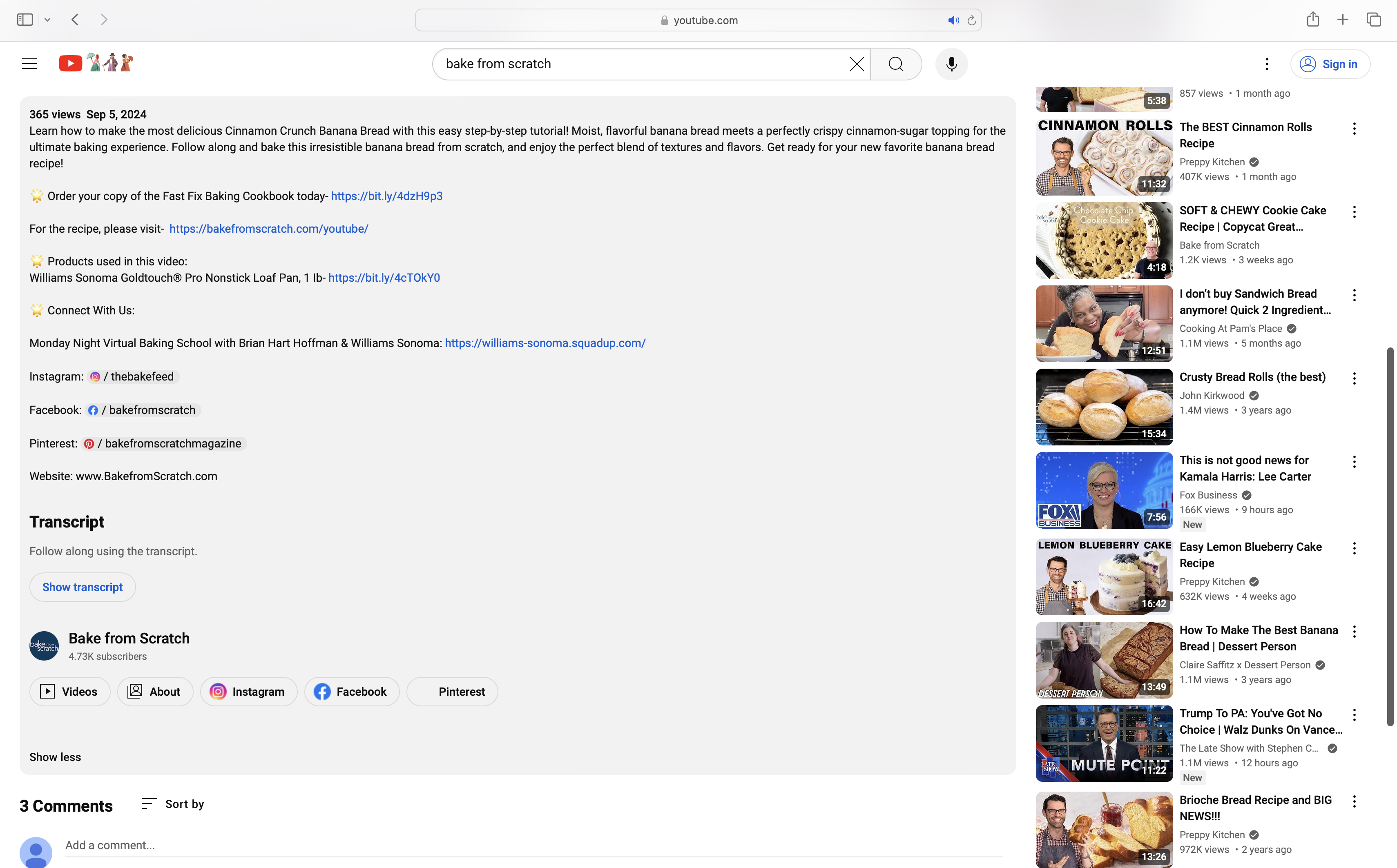
To view the full video description and access the links to the recipes featured in our videos, scroll past the video player. Underneath the video title, there will be the number of views the video has and then a text block. Click on the “…more” on that text block. This will open the full video description and you will be able to access the links to the recipes and products featured in each of our videos.
 For Mobile or Tablet
Download the YouTube app to your device.
 If you do not already have the YouTube app downloaded on your device, visit one of the links below to download it.
Apple iPhone or iPad: Download the YouTube app here
Android devices: Download the YouTube app here
Open the YouTube app.

Sign in to your Google account.
 If you have not previously signed into your Google account on YouTube, you will need to do that to subscribe to the channel. If you do not have a Google account, you can create one for no cost. Signing into your Google account will allow you to subscribe to YouTube channels, like videos, leave comments, etc.
Click on the silhouette in the upper right-hand corner of the app. Click on the Sign In button and follow the prompts to sign in to your Google account.
Search for Bake from Scratch.
 One the Home tab of the YouTube app, tap on the magnifying glass icon in the upper right-hand corner of the app. Type “Bake from Scratch” in the search bar.
Tap on the Bake from Scratch profile.

At the top of the results page, you should see the Bake from Scratch profile before any video results. The profile picture is a blue logo for Bake from Scratch. Clicking on this will take you to Bake from Scratch’s official YouTube channel.
Tap the Subscribe button.
 Once you click on the button, the button text should change from “Subscribe” to “Subscribed.” You are now subscribed to the channel, meaning you are following the channel.
Turn on notifications.
 Tap on the down arrow on the Subscribe button. You will see multiple options here. The top three options listed with bell icons next them are your notification options. Decide which kind of notifications you would prefer to receive for when new content is posted to the channel (All, Personalized, or None) and click on the appropriate option.
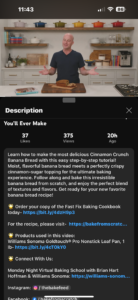
View the video description.
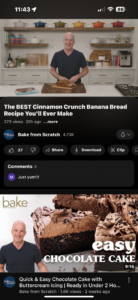 Tap on the video title under the video player.
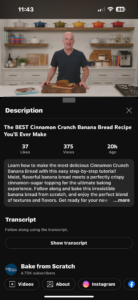 Underneath the video’s title and statistics, you will see a block of text. Tap on this block and the full video description will open. Here, you will be able to access the links to the recipes and products featured in each of our videos.